

Handbrake Alternatives: What to Use When You Don't Want to Install It
What you're replacing
People look for a Handbrake alternative for one of three reasons, and each needs a different answer.
Some want the same power with an easier interface. They don't mind installing software; they just find Handbrake's settings panel unfriendly. Some want no install at all, usually because it's one file, a work laptop that blocks installs, or a phone. And some want something Handbrake can't do, like editing, trimming, subtitles or conversions outside its range.
To be clear up front: for batch processing a library with precise encoder control, Handbrake is still the best free option, and nothing below beats it at that. This is about the jobs where it's more tool than the task needs.
Browser-based compressors
This category barely existed a few years ago. Browsers can now encode video natively through the WebCodecs API, so a web page can compress a file on your own machine instead of uploading it. It's the same basic operation Handbrake performs, without the install.
I built my video compressor this way. Open the page, drop in a video, pick a compression level or type an exact target size in MB, and download the result. It doesn't upload anything or ask for an account, and it works the same in Safari on an iPhone as in Chrome on a desktop.
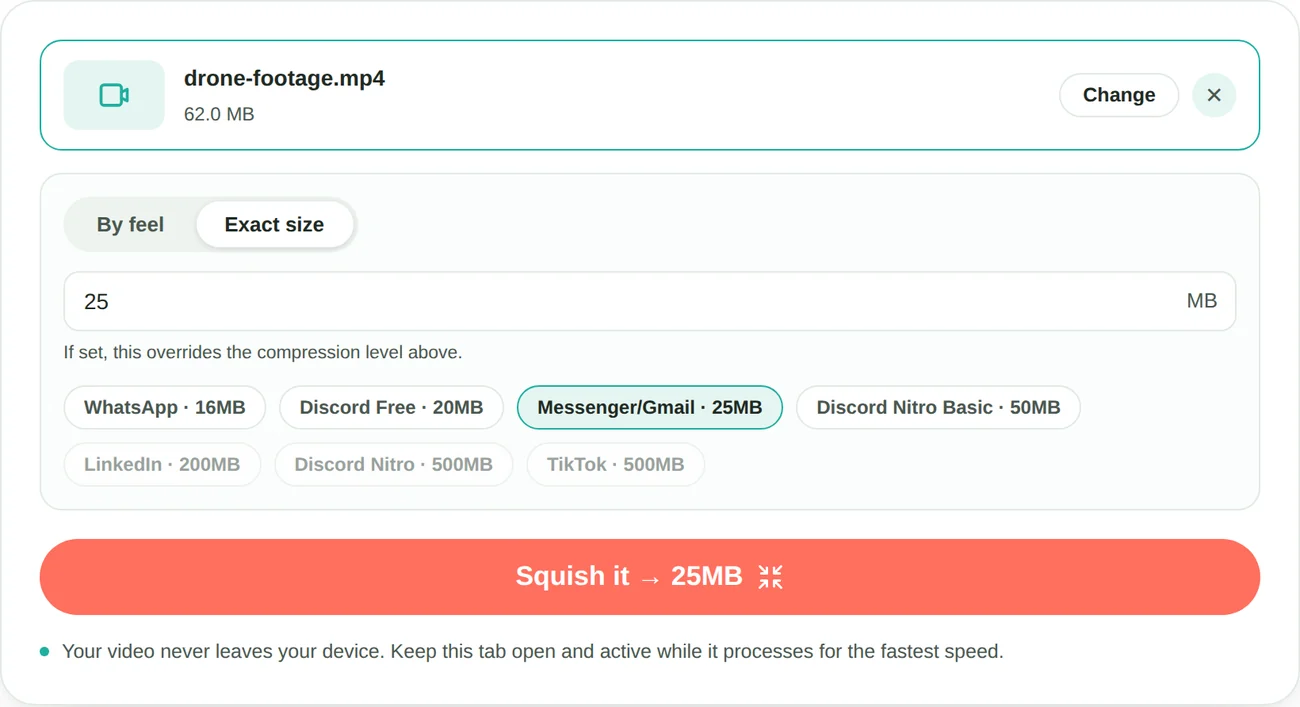
Where it wins: one-off files, locked-down machines, phones and tablets, and the "this has to be under 25MB" case, where you type 25 instead of calculating a bitrate and running a two-pass encode.
Where it doesn't: the encoding runs on your own hardware, so a multi-gigabyte 4K file on a modest laptop takes real time. You can't queue fifty files to run overnight, and you don't get frame-level encoder control. If either is your workflow, stay with Handbrake.
Upload-based online converters
Clideo, VEED, FreeConvert, Media.io and many similar services work differently. You upload the file, their servers compress it, and you download the result. That's useful when your own machine is slow, since the work happens on their hardware.
Where they win: heavy files on weak hardware, and feature sets that go well beyond compression, like trimming, subtitles, format conversion and basic editing.
Where they don't: your video leaves your device, which rules them out for anything confidential. Free tiers vary a lot and change often: size or length caps, watermarks, required accounts, daily limits. Check the current terms of any service you consider instead of trusting a comparison article, this one included. And a large upload on a slow connection can take longer than compressing locally would.
Other desktop tools
FFmpeg is the engine Handbrake is built on, without the interface. If you're comfortable at a command line, it's more capable, scriptable and the fastest way to batch anything. If you're not, it's a wall of flags.
VLC is already on most machines and has a Convert/Save function that compresses video. It works, but it's poorly signposted, gives far less control than Handbrake, and fails in ways that are hard to diagnose. It's fine in a pinch, but it doesn't really replace Handbrake.
Shutter Encoder is the closest direct competitor to Handbrake: a free FFmpeg front end with a broader feature set covering conversion, trimming and some professional formats. Its interface takes a different approach, and whether it's friendlier is a matter of taste.
Adobe Media Encoder and similar paid tools are excellent and priced for professionals. They're not a sensible answer to "I don't want to install Handbrake."
Built-in options you already have
On macOS, QuickTime Player's File → Export As offers fixed resolution presets (1080p, 720p, 480p). It's crude and has no size control, but it's already installed.
On iOS, Mail's attachment size menu and the Shortcuts app's Encode Media action both compress without a download. I cover both in how to compress a video on iPhone.
On Windows, the Photos app can export at a lower resolution, though it's slow and the controls are minimal.
They all share one limitation: they offer resolution presets, not size targets. They'll make a file smaller, but not smaller than a specific number.
Picking one
| What you need | Use |
|---|---|
| One file, under a specific MB limit | A browser-based compressor |
| Fifty files, overnight, precise settings | Handbrake or FFmpeg |
| Can't install software on this machine | A browser-based compressor |
| Huge file, slow hardware, not confidential | An upload-based service |
| Compress plus trim, subtitles or editing | An upload-based editor, or Shutter Encoder |
| Confidential footage | Anything local: Handbrake, FFmpeg or a browser-based tool |
| Scriptable and repeatable | FFmpeg |
Common questions
Is there an online version of Handbrake?
Not officially. Handbrake is desktop only, with no web edition. The closest thing is a browser-based compressor that encodes on your own device. It shares the "nothing uploads" property but not Handbrake's depth of settings.
What's the best free alternative to Handbrake?
It depends on the job: FFmpeg for more power if you're fine with a command line, Shutter Encoder for a broader graphical tool, and a browser-based compressor for one-off files when you'd rather not install anything.
Can I compress a video without downloading software?
Yes. Browser-based compressors encode on your device with nothing installed, and upload-based services do the work on their servers. What matters is whether your file leaves your machine.
Is Handbrake still worth using?
Yes, for batch work and precise encoder control it's still the best free desktop option, and my settings guide covers getting good results from it. It's just heavier than a single file usually needs.
Are online video compressors safe?
Browser-based ones never send your file anywhere, so there's nothing to intercept or store. Upload-based ones have to send it to a third-party server, which is fine for a holiday clip and worth a second thought for anything confidential. I explain how to check which kind a tool is in is it safe to compress a video online.
Which one I'd pick
Most people searching for a Handbrake alternative don't need a friendlier Handbrake. They need a video under a size limit in the next few minutes, and a full encoding suite is the wrong tool for that. If that's you, type the number into a browser-based compressor and move on. If you're processing a library or need specific encoder settings, install Handbrake and read what its settings do. You'll get better results than any alternative here will give you.