

How to Compress a Video on iPhone (4 Ways, Compared)
Why iPhone videos get so big
A three-minute iPhone clip can easily pass a gigabyte, and nothing about it looks unusual in Photos. The size comes from what the camera records by default, and most people never change the defaults because they have no reason to until something won't send.
Four settings do most of the damage. 4K resolution is the default on every recent iPhone, and 4K at 60fps runs about six times the data rate of 1080p at 30fps. HEVC (H.265) is more efficient than the older H.264, which sounds like it should help, and per pixel it does. But it also let Apple raise the default resolution and frame rate, so files got bigger anyway. Cinematic mode records depth information with the picture so you can change the focus later, which is useful and expensive in megabytes. And slow motion records at 120 or 240 frames per second, four to eight times as many frames as normal video for the same length.
ProRes, on Pro models, is a category of its own. It's a near-lossless editing format, not a sharing format, and at 4K it runs to several gigabytes per minute. If you turned it on for a shoot and forgot to turn it off, that's almost certainly your answer.
None of this is a fault. The camera does what it was set to do. It only becomes a problem when you try to email, upload or message the result.
Option 1: Mail's attachment size options
This is the fastest route if you're emailing the video anyway. Attach the video in the Mail app and tap Send, and iOS shows a size menu before sending: Small, Medium, Large and Actual Size. Pick anything but Actual Size and Mail re-encodes the video before it leaves the phone.
What's good: no setup, nothing to install, and it's part of the flow you were already in.
The limits: those four options are all you get. You can't see the resulting size before you commit, you can't aim for a number like 25MB, and it only exists inside Mail. It won't shrink a video for Discord, a web form or your storage. "Medium" on a short clip and "Medium" on a ten-minute recording give very different results, and you find out which after it's sent.
Use it when you're emailing one clip and the exact size doesn't matter. Skip it for anything else.
Option 2: The Shortcuts app
iOS includes a Shortcuts action called Encode Media that re-encodes a video at a chosen resolution, and it's the most flexible option already on the phone. Build a shortcut that takes a video as input, runs Encode Media with a resolution cap and a quality preset, and saves the result. Then run it from the Share sheet on any video in Photos.
What's good: it's free and built in, it works on any video instead of inside one app, and once the shortcut exists you can reuse it forever. If you compress video on your phone often, the twenty minutes of setup pay for themselves.
The downside: you have to build it, or find someone else's and trust it. Encode Media aims at a resolution and a quality preset, not a file size, so getting under 25MB is still trial and error with more knobs. Shortcuts also tend to break quietly after iOS updates.
Use it if you compress video every week and like having a reusable button. Skip it for a one-off.
Option 3: App Store compressor apps
Search "video compressor" in the App Store and you'll get dozens of results, most free to download. The good ones give you real control over resolution, bitrate and sometimes a target file size, and they handle batches properly.
What's good: real compression controls, offline use, and batch processing the built-in options don't have.
Watch out for: you're installing software to solve a one-file problem, and free tiers vary a lot. Some add a watermark. Some cap length or resolution until you subscribe. Some ask for your whole photo library when they only need one video. A few upload your footage to their own servers to do the work, which most people don't expect from an app. Read what the free tier includes before you give it a video.
Use one if you compress video constantly and find an app you trust. Skip it for a single clip.
Option 4: Compress it in Safari, no app
Safari on iPhone can now encode video natively, so a web page can compress on the phone itself without uploading anything. I built my video compressor on exactly that. Open the page in Safari, tap to pick a video from Photos, set a compression level or an exact target size in MB, and save the result to Photos or Files.
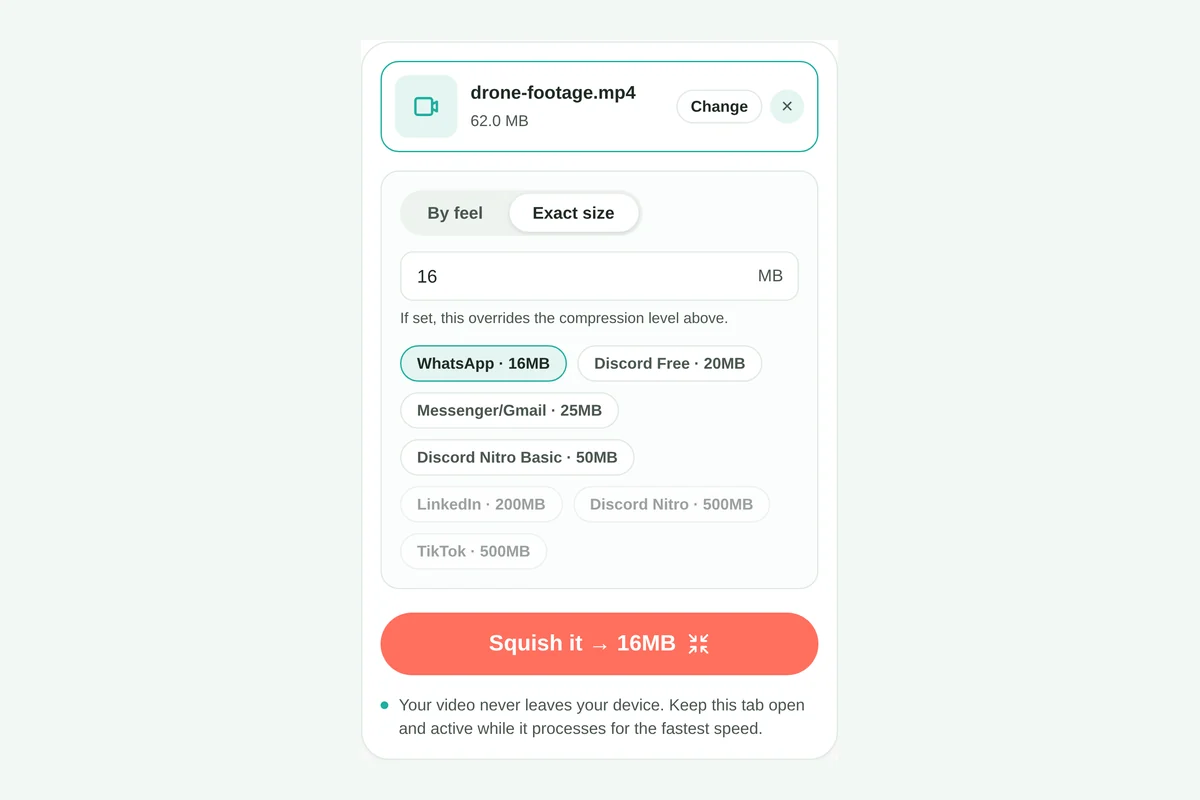
What's good: you don't install anything, make an account or put up with a watermark. It's also the only one of the four options that lets you type an exact number. If your limit is 25MB for email or 16MB for WhatsApp, you type 25 or 16 instead of guessing a preset and checking afterward. The encoding runs in the browser, so you don't upload the video.
The trade-off: your phone does the work, so a multi-gigabyte 4K file takes real time and battery. Keep the tab in the foreground while it runs. Safari throttles background tabs hard, and that's the usual reason a job seems to stall. On an older iPhone, a very large file will be slower than a desktop app.
Which one to use
| Situation | Use |
|---|---|
| Emailing one clip, exact size doesn't matter | Mail's size options |
| Need it under a specific number of MB | Safari (target size field) |
| Compressing videos most weeks | A Shortcut, or a trusted App Store app |
| A folder of clips, all to the same size | An App Store app with batch mode, or Safari one at a time |
| Don't want to install anything | Safari, or Mail if you're emailing it |
Stop the problem at the source
If you keep running into this, change what the camera records. In Settings → Camera → Record Video, going from 4K 60fps to 4K 30fps roughly halves the data rate, and 1080p 30fps is a fraction of either. That's still plenty of resolution for a phone screen, a social feed or a video call.
Also in Settings → Camera, Formats lets you pick "High Efficiency" (HEVC) or "Most Compatible" (H.264). High Efficiency makes smaller files. Most Compatible makes bigger ones that open more easily on older Windows machines and some upload forms. If size is your problem, stay on High Efficiency and compress when you share. Switching to Most Compatible makes files bigger, not smaller.
If you have a Pro model, check whether ProRes is on. It's the biggest multiplier on this list and easy to leave on by accident.
Common questions
How do I compress an iPhone video without losing quality?
Re-encoding always loses something, but you can keep it invisible. Compress from the original instead of an already compressed copy, use a light setting, and give a longer video a more generous target. The same 25MB stretches much thinner over ten minutes than over ten seconds.
How do I compress an iPhone video for email?
Aim for 25MB for Gmail, Outlook or Yahoo, or 20MB for iCloud Mail. The email video compressor has a preset for each provider, and Apple Mail can also hand a large file to Mail Drop instead.
Does compressing a video delete the date or location?
It shouldn't. Compression rewrites the video and audio, not the metadata Photos uses to sort your library. Some third-party apps do strip it, though, so check if it matters to you.
Why is my iPhone video still huge after compressing?
Usually one of three reasons: you compressed a copy instead of the original, the clip is long enough that even a heavy setting leaves it large, or it's ProRes, which starts so big that one pass barely dents it.
Can I compress a video on iPhone without an app?
Yes. Mail's attachment sizes and the Shortcuts app are built in, and a browser-based compressor runs in Safari with nothing to install. Only the browser option lets you name an exact file size.
How do I send an iPhone video to someone on Windows?
Convert it to MP4 on the way. Any MOV you run through the compressor comes out as MP4, and MOV vs. MP4 explained covers why MOV files trip up Windows.
The short version
The four routes sort cleanly. Mail's size options are fastest when you're emailing anyway. Shortcuts is the best free reusable option if you'll do this often. App Store apps make sense only if you compress constantly and find one with a fair free tier. And if you need a specific number of megabytes, which is usually what "make it smaller" means in practice, compressing in Safari is the only one of the four that lets you type the number.