

Handbrake Compress Video: CRF, Presets and Target Size Explained
The four settings that matter
Handbrake shows dozens of controls, and most of them will never change your output in a way you'd notice. When the goal is "make this file smaller without wrecking it," four settings do nearly all the work:
- Constant Quality (RF), the biggest lever on file size.
- Encoder preset, how hard the encoder works, which trades time for efficiency.
- Resolution, whether you scale the picture down before encoding.
- Video encoder, H.264 or H.265, which decides how much compression you get for a given quality and what can play the result.
The rest, like filters, detelecine options and the audio passthrough settings, matters for specific jobs, not for shrinking a file.
Constant Quality (RF) is the main dial
Handbrake calls it RF; the encoder underneath calls it CRF, Constant Rate Factor. Either way it's a quality target, not a size target. You tell the encoder how much visual fidelity to keep, and it spends whatever bitrate that takes: a lot on a busy action scene, very little on a static talking head. So a CRF encode has an unpredictable size and a consistently predictable quality, which is the right trade for most work.
The scale runs from 0 to 51 and it's inverted: lower numbers mean higher quality and bigger files. Zero is mathematically lossless and produces files bigger than your source, which is almost never what anyone wants.
| RF value | Roughly what you get | When to use it |
|---|---|---|
| 16–18 | Hard to tell from the source | Archiving, footage you'll edit again later |
| 20–23 | The usual sweet spot; differences are hard to spot in normal viewing | Most jobs. Handbrake's defaults sit in this range. |
| 24–28 | Clearly smaller, with some softness if you look for it | Sharing, uploads, long recordings |
| 28+ | Visible blocking and smearing, especially in motion | Only when a hard size limit leaves no choice |
The usual rule of thumb says a change of 6 in RF halves or doubles the file size. I tested it on a 9-second 720p aerial clip (a free Pexels video, 9.4 Mbps straight from the camera) with x264 through FFmpeg, the same encoder and RF scale Handbrake uses, at the Medium preset:
| RF | File size | SSIM vs. source |
|---|---|---|
| 18 | 10.1 MB | 0.994 |
| 22 | 5.4 MB | 0.981 |
| 24 | 3.8 MB | 0.973 |
| 28 | 1.8 MB | 0.947 |
| 34 | 0.7 MB | 0.881 |
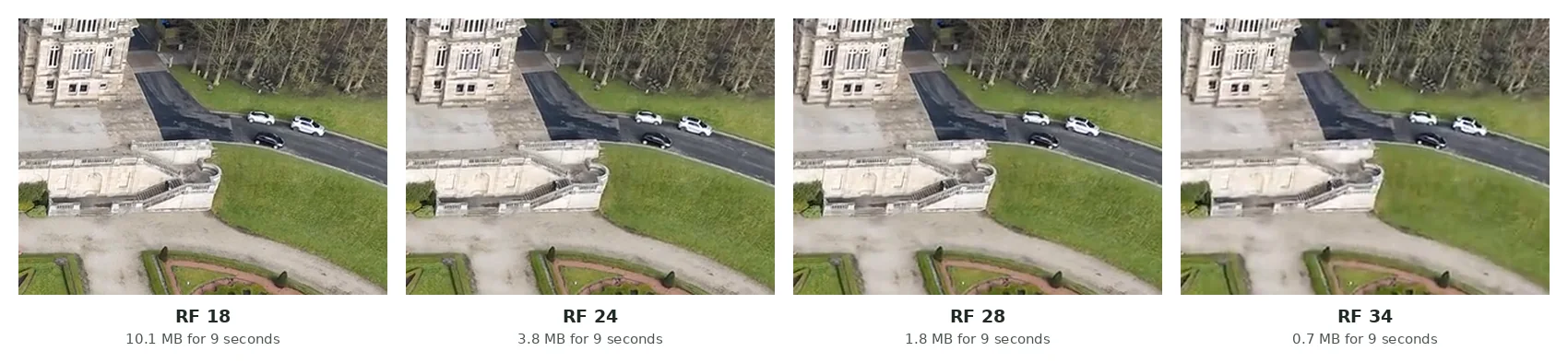
On this footage each step of 6 cut the file by 2.6 to 3 times, not 2. Detailed, noisy material like grass and trees reacts more strongly than a talking head, so treat 6 as the step that at least halves the size. If RF 22 gave you 400MB and you need about 200MB, try RF 26 first instead of moving one step at a time and encoding five times.
Because RF targets quality, two clips encoded at the same RF can differ wildly in megabytes. That's the system working as designed, and it's also why RF is the wrong tool when you have a hard limit to clear.
Encoder preset: time versus efficiency
The preset dropdown, from ultrafast to placebo, sets how much effort the encoder spends hunting for ways to compress. It doesn't set quality directly, but it changes how much quality you get per megabyte. To see how much, I encoded the same aerial clip with four presets at the same 3 Mbps using two passes, so every file came out the same size, and timed each one on a modest 2-core machine:
| Preset | Encode time (both passes) | SSIM at the same file size |
|---|---|---|
| ultrafast | 4.6 s | 0.843 |
| veryfast | 6.2 s | 0.963 |
| medium | 11.1 s | 0.970 |
| slow | 16.0 s | 0.971 |
Medium is the default, and my numbers say it's the right one. Slow took 45% longer for a gain I couldn't see on this clip. Past slower, the returns drop off even faster; placebo is named as a joke about exactly that. Ultrafast is the one to avoid when size matters: at the same file size it looked clearly worse, and at RF 22 it wrote a 24.5 MB file where medium wrote 5.4 MB.
One trap when comparing presets yourself: at a fixed RF, changing the preset doesn't hold quality constant. Veryfast at RF 22 gave me a smaller file than medium, but also a lower SSIM (0.966 against 0.981). Compare presets at the same file size, as in the table, or you'll mistake a quality drop for a free saving.
H.264 versus H.265
H.265 (HEVC) reaches about the same quality as H.264 with less bitrate. Published comparisons usually put the saving at 25 to 50%, larger at 1080p and 4K. On my short 720p test clip it was smaller: x265 at RF 26 matched x264's SSIM (0.969) at 2.97 MB, where x264 needed about 3.4 MB, roughly 13% less. The saving is real, and it costs compatibility and time. H.265 encodes much more slowly, and although support is broad now, broad isn't universal. Older TVs, some editing software, certain upload forms and a few browsers refuse an H.265 file that an H.264 file gets through without trouble.
The practical split: use H.264 when the file goes to someone else, to a platform or into an upload form. Use H.265 when the file is for you, like archiving a library or freeing disk space, and you control what plays it. If your machine has hardware encoding (QuickSync, NVENC, VideoToolbox), it's far faster than the software encoder, at the cost of a somewhat bigger file for the same quality.
Hitting an exact file size with two-pass
RF can't hit a target size, because it isn't trying to. When you need "under 25MB," switch from Constant Quality to Avg Bitrate and tick 2-pass encoding.
On the first pass, the encoder analyzes the whole video without writing output and maps which sections are complex and which are simple. On the second pass it encodes for real and spends the bitrate budget where the map says it's needed. That's how it lands close to a set average bitrate, and so close to a set file size, instead of hoping.
You still work out the bitrate yourself:
target bitrate (kbps) ≈ (target size in MB × 8192) ÷ duration in seconds
Then subtract the audio bitrate, because the file carries both. For a 3-minute video into 25MB with 128kbps audio: 25 × 8192 = 204,800 kilobits, divided by 180 seconds is about 1,138 kbps in total, and minus 128 for audio leaves roughly 1,010 kbps for video. Aim a bit lower, around 950, because container overhead is real, and landing at 25.4MB after all that is a miserable way to spend ten minutes.
Two-pass doubles the encode time, which is the price of precision. Be realistic about a tight budget too: 1,010 kbps for 1080p footage with lots of motion looks rough however well it's allocated. If the result isn't acceptable, drop to 720p instead of squeezing harder. A sharp 720p picture looks better than a blocky 1080p one at the same bitrate. My video bitrate chart lists what each resolution needs.
Resolution: the setting people forget
In the Dimensions tab, scaling 4K down to 1080p removes three quarters of the pixels before the encoder sees them. No RF value competes with that for raw size reduction, and for anything watched on a phone, in a social feed or on a video call, the lost resolution is invisible.
Handbrake won't do it unless you ask, because the default preset keeps your source dimensions. If you're fighting a size limit, check whether your source is 4K before anything else. Often that alone explains the size.
Presets worth starting from
Handbrake's built-in presets are a good place to start and a bad place to stop. Fast 1080p30 is the sensible general default: H.264, RF around 22, a medium-fast preset, scaled to 1080p. The Web presets target common platform requirements and make a fine base for an upload. The Matroska group writes MKV, which is great for archiving and a poor choice for sending to other people, since MKV support outside dedicated players is patchy.
Pick the closest preset, then change the two settings that matter for your job, RF and resolution, instead of building a configuration from scratch.
Common questions
What are the best Handbrake settings for compressing video?
H.264, RF 22 to 24, the Medium preset, scaled to 1080p if the source is 4K. That covers most "make this smaller" jobs. Raise RF toward 26 to 28 if it's still too big, and drop to 720p before going past 28.
How do I compress a video to a specific size in Handbrake?
Switch from Constant Quality to Avg Bitrate, enable 2-pass encoding, and set the bitrate to (target MB × 8192) ÷ seconds, minus your audio bitrate. Aim slightly under your limit to cover container overhead.
Is a lower RF number better in Handbrake?
Lower means higher quality and a bigger file, since the scale is inverted. RF 18 is high quality and big, RF 28 is heavily compressed and small, and RF 0 is lossless and bigger than your source.
Does a slower Handbrake preset improve quality?
At the same file size, a little. In my test, slow scored 0.971 against medium's 0.970 for 45% more encode time. The big gap is between ultrafast and everything else, so stay on medium unless you have time to spare.
Why is my Handbrake output bigger than the original?
Usually the RF is set too low (near 0 to 16), or you re-encoded a file that was already heavily compressed. The encoder can't recover missing detail, but it will spend bitrate faithfully reproducing the old compression artifacts.
Is there a faster option for one-off files?
For a single clip, setting up Handbrake often takes longer than the encode. A browser-based compressor does the bitrate math for you from a target size in MB, with nothing to install. The alternatives comparison covers where each approach fits.
When Handbrake is the wrong tool
Handbrake is the right answer when you're batch processing a library, need specific encoder settings, or compress often enough that the settings panel becomes muscle memory. It's excellent software, and it's free.
It's the wrong answer when you have one video, a deadline and a size limit, because the fastest route is typing the number you need, not learning what RF means. That's the job I built SquishyFile for: enter a target size in MB and it works out the bitrate in your browser, with nothing to install. Where people go wrong is reaching for the heavy one for a thirty-second job.