

Why a 5-Second GIF Can Be Bigger Than a 30-Second MP4
A 5-second GIF, heavier than a 30-second video
It seems backwards the first time: a 5-second GIF export comes out at 8MB, while the 30-second MP4 it was cut from is 6MB. Same footage, same phone, and the shorter clip is the bigger file. The converter didn't break. GIF and MP4 are two very different ways of storing a moving picture, and one of them is far less efficient.
The reasons come down to three things: how GIF stores color, what happens when you ask it to fake more color than it has, and how it compresses motion, or mostly doesn't.
GIF is an image format doing a video's job
An MP4 stores each frame in full color, with millions of possible shades, the same range a photo holds. A GIF can't. The format limits every frame to a palette of at most 256 colors, and each pixel is stored as a pointer into that palette instead of as a color value. That limit is part of the GIF specification from 1987, so no encoder can get around it.
256 colors sounds like plenty until you use real footage. A sunset photo, a gradient in an app, skin under mixed lighting: each can contain thousands of distinct colors in one frame. Turning that frame into a GIF means choosing the 256 or fewer colors that represent it best and mapping everything else to the nearest one. That step is called quantization, and every MP4 or MOV to GIF conversion does it, whatever the tool. The only choices are how many colors to keep and what to do with the color information that gets thrown away.
One palette, built once, reused for every frame
A multi-frame GIF can handle its palette two ways: build a fresh one for every frame, or build one shared palette and reuse it. A palette per frame is more accurate, since each frame gets the best 256 colors for what's in it, but it's slower to encode and stores a new 256-entry color table over and over. A shared palette pays that cost once, which is why it's the more common choice.
To build a good shared palette without reading every pixel of every frame, a practical shortcut is to sample a limited number of pixels spread across all the frames the clip uses. That's enough to capture the clip's range of color, and past a certain sample size, more pixels stop improving the palette and just make long clips slower to convert.
The trade-off shows up when a color appears briefly in one frame but barely registers in the overall sample, like a flash of saturated color for half a second in an otherwise muted clip. Because the palette was built for the whole clip, that frame's color snaps to the nearest entry in the shared table, where a frame-specific palette would have kept it. It's an accuracy-for-efficiency trade, and it's part of why a screen recording with flat colors converts to GIF far more faithfully than a clip with lots of fast color changes.
What dithering trades away
Snapping every pixel to one of 256 colors has a visible side effect: smooth gradients, like a sky, a shadow or a soft falloff of light, stop being smooth. You get visible bands, because a range of similar colors all mapped to the same one or two palette entries. That banding is the most recognizable GIF artifact.
Dithering is the standard fix, and Floyd-Steinberg error diffusion is the classic version. When a pixel gets rounded to the nearest palette color, the rounding leaves an error, the difference between the pixel's real color and the one it got. Instead of discarding that error, the encoder spreads it into the neighboring pixels it hasn't processed yet, nudging their rounding to compensate. Across a gradient, the hard bands disappear and a fine grain takes their place, which your eye blends back into something close to the original gradient at normal size.
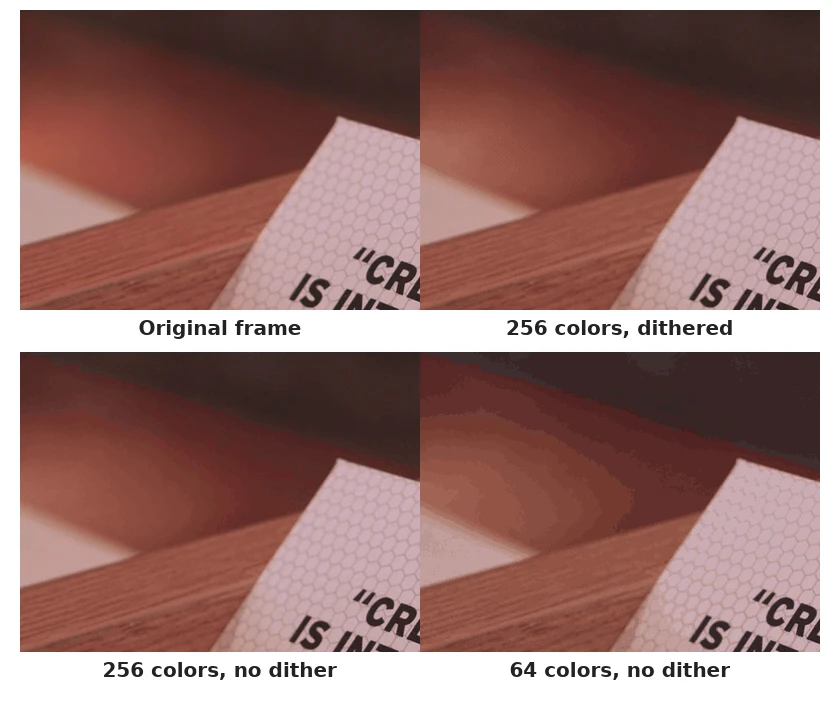
The cost shows up in what that grain does to compression. GIF's data compression, separate from the palette, is LZW, a general scheme that shrinks a file by finding repeated patterns and storing them once. Flat regions with long runs of the same color compress very well under LZW. The noise dithering adds is deliberately not repetitive, since its whole job is to break up flat color. That makes it harder for LZW to compress. So dithering actually makes the file bigger, in exchange for nicer gradients. On the 3-second test clip above (480px wide, 10fps), the dithered GIF came to 2.46MB against 2.30MB without dithering, about 7% more, and noisier footage costs more than that. That's a fair trade for photographic content like skin and skies. For flat material like screen recordings or line art, turn it off, because there's no banding to fix and the noise is pure cost.
Why motion makes GIFs huge
This is the biggest gap between GIF and video, and it explains the "5 seconds bigger than 30 seconds" case most directly. Real video codecs rarely store a frame as a complete picture. Most frames store only what changed since a nearby reference frame: motion vectors and a small correction, not a full redraw. A static shot of someone talking, where only the mouth and eyes move, costs the codec very little per frame after the first, because most of the picture doesn't need sending again. My breakdown of I-frames and P-frames covers how that works.
GIF has nothing like it. LZW compresses each frame on its own, looking for repetition within that one frame. It never compares frame 12 to frame 11 and stores only the difference. So a clip with lots of motion, fine texture, camera shake or film grain gets none of the "mostly unchanged, cheap to store" discount a real codec gives it. Every frame costs close to full price. A busy 5-second GIF can outweigh a 30-second MP4 of calmer footage because the MP4's codec exploits repetition over time and GIF can't. The same 3-second test clip from the figure above makes the point: as a GIF it weighed 2.3MB, and as an H.264 MP4 at the same width it weighed about 100KB, more than 20 times smaller.
Frame rate adds to this directly, because every extra frame pays that full price. It's also why GIF gets away with a much lower frame rate than video. A GIF reads as a short repeating loop rather than continuous motion, so 8 to 10 frames per second often looks natural, where video needs about 24 to 30 to avoid looking choppy. Above roughly 20fps, a GIF gains almost nothing: the eye doesn't notice the extra smoothness, but the file pays for every frame.
The settings that matter
All of this maps onto the settings you get when converting a clip to GIF: frame rate, width, color count and dithering. Roughly in order of how much they save for how little visible cost:
- Frame rate first. With no motion compensation, every frame is expensive, and 8fps looks smooth for a loop in a way it never would for a video. Going from 24fps to 10fps or lower is usually the biggest single saving, and for reactions, short demos and UI walkthroughs it costs almost nothing visually.
- Dithering, depending on content. Keep it on for anything photographic, like real footage with gradients, skin and natural light. Turn it off for flat material like screen recordings, UI demos, text-heavy clips and line art.
- Color count next. 256 colors suits photographic content. Screen recordings, memes and anything with big flat areas often look fine at 128 or even 64 colors.
- Resolution last. Shrinking the width always cuts the size, but it's the most visible change of the four, so try the others first.
If you're starting from a phone video or a screen recording in MP4, my MP4 to GIF converter has all four settings, plus trim, crop and speed, and it runs in your browser. For a Mac screen recording or an iPhone MOV, the MOV to GIF converter does the same from that format without re-exporting first. And if you already have a finished GIF that's too heavy, the GIF compressor applies lossy compression, fewer colors, a smaller width or dropped frames to the GIF itself. If the GIF is headed somewhere that plays video anyway, like Instagram or a slide deck, the GIF to MP4 converter turns it into an MP4 at a fraction of the size.
Frequently asked questions
Why is my GIF bigger than the video I made it from?
The two formats compress completely differently. Video codecs skip re-sending the parts of a frame that haven't changed, while GIF compresses each frame on its own with no shortcut for motion. A short, busy clip can easily outweigh a longer, calmer video.
Does lowering the frame rate shrink a GIF much?
Usually more than any other setting. GIF pays close to full price for every frame, so halving the frame rate roughly halves the frame count, and since GIFs read as loops, 8 to 10fps often looks as good as 24fps.
Should I turn dithering off to make a GIF smaller?
It depends on the source. Dithering trades some size for smoother gradients, so keep it for real footage. For flat content like screen recordings or UI demos there's no banding to fix, so turning it off saves size for free.
Why do GIFs look grainy compared to the source video?
That's dithering at work. Instead of hard color bands, it scatters the rounding error into neighboring pixels as fine noise, which the eye blends into a smoother gradient, at the cost of a grainy texture and a bigger file.
Can a GIF have more than 256 colors?
No. It's a hard limit of the format, not a converter setting. Every frame is stored against a palette of at most 256 entries, which is why turning real footage into a GIF always discards some color.
What cuts file size more, lower resolution or lower frame rate?
Usually frame rate, because GIF can't compress motion cheaply and each frame costs nearly full price. Resolution matters too, but it's the most visible change, so try frame rate, colors and dithering first.