

What's Inside a Video File: I-Frames, P-Frames and Why Editing Forces a Re-Encode
A video isn't a stack of photos
It's a natural assumption: a video is a folder of pictures shown quickly enough to look like motion. That's roughly true of what comes off a camera sensor for a split second, but not of the file that gets saved. Storing every frame as a complete image would make videos enormous, tens of times bigger than what a phone produces, so encoders do something smarter. Understanding it explains a few confusing behaviors: why seeking to an exact time sometimes lands on a slightly different frame, why trimming "just one second" usually re-encodes the whole clip, and why a still you extract can look worse than the video seemed during playback.
Three kinds of frame, not one
Most video codecs, including H.264, HEVC, AV1 and older formats, sort frames into three types, and only one of them is a complete picture.
I-frames (intra-coded)
An I-frame, also called a keyframe, is a full, independent image. Everything needed to draw it is inside that frame, with no reference to any other. It's the closest thing to a photo inside a video file, and the most expensive frame type to store, because it can't lean on anything nearby to save space.
P-frames (predicted)
A P-frame doesn't store a full picture. It stores the difference from an earlier frame: which parts moved, which stayed put, and by how much. If a scene is still except for someone talking, a P-frame might only describe the area around their mouth, because redrawing everything else would waste data. Most frames in almost any video are like this.
B-frames (bi-directional)
A B-frame goes further and predicts from frames on both sides, one before and one after. That sounds impossible, since the later frame hasn't played yet, but the encoder stores frames out of playback order so the decoder already has both. B-frames are usually the cheapest to store, because they have the most to predict from.
You never see any of this during normal playback. Your player rebuilds every frame in the right order before showing it. It only starts to matter when you do something more precise than watching straight through: seeking to an exact point, pulling out one frame, or cutting a clip in the middle.
The three types show up in any ordinary file. I listed every frame of an 8.5-second 720p clip from Pexels with ffprobe, along with its type and how many bytes it takes up in the file:
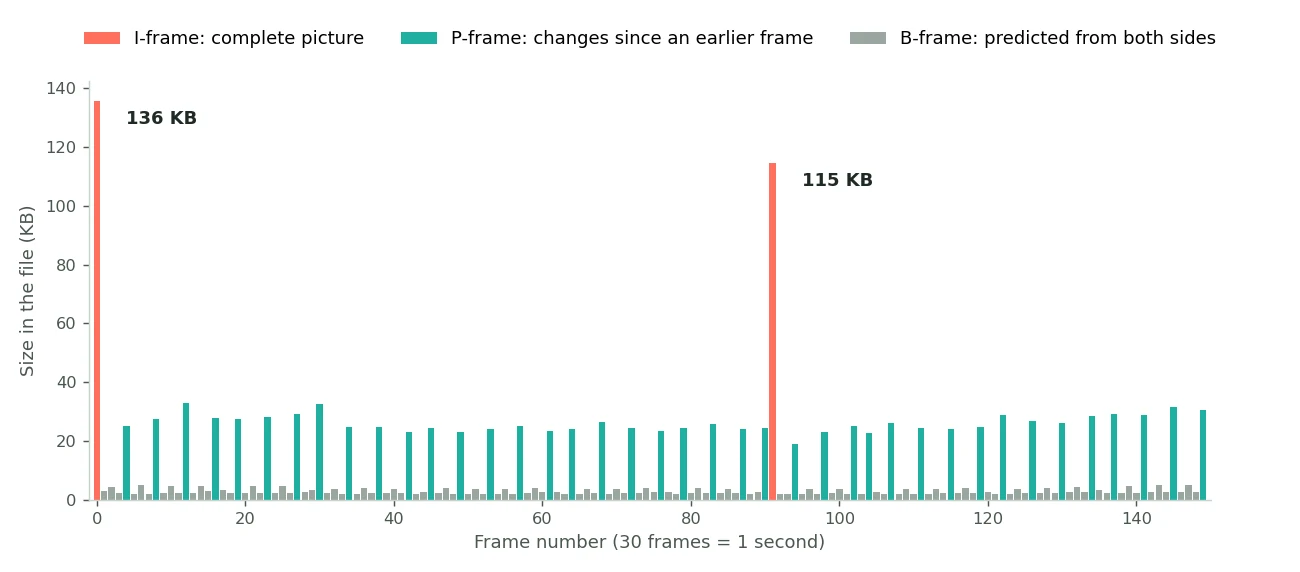
Across the whole clip, its 3 I-frames averaged 121 KB each, its 68 P-frames 25 KB and its 185 B-frames just 2.8 KB. One I-frame costs about as much as 40 B-frames. The clip starts a fresh I-frame every 91 frames, roughly every 3 seconds, and that rhythm explains the next section.
Groups of pictures, and why they have a length
Encoders arrange frames in repeating units called a GOP, a Group of Pictures. Each starts with an I-frame, followed by a run of P- and B-frames that all depend, directly or indirectly, on that keyframe. A typical GOP lasts somewhere between half a second and a few seconds before the next I-frame starts the cycle again.
GOP length is a real trade-off. A longer GOP means fewer expensive I-frames, so the file is smaller at the same quality. But every predicted frame in that stretch sits further from the one complete picture it depends on, and that's what drives the next sections.
Why seeking sometimes lands on the "wrong" frame
When you drag a scrubber to an exact time, the player has to show a complete image of that moment. If the moment falls on a P- or B-frame, it can't decode that frame alone, because it was never stored as a full picture. It has to find the previous I-frame and decode forward through every frame in between to rebuild the one you asked for.
Some players take a shortcut and simply jump to the nearest I-frame, which is why a scrubber sometimes visibly snaps to a slightly different moment than where you let go, especially with long GOPs and sparse keyframes. It's a speed trade-off rather than a bug. Decoding several seconds of predicted frames for pixel-perfect seeking is real work, and plenty of software picks the faster, slightly less precise option.
Why an extracted still can look worse than the playing video
This one catches people using a tool like my frame extractor. The video looked sharp while it played, but the still you download looks softer or blockier than you remember.
Frame types explain most of it. Encoders don't treat all frames equally. I-frames get a generous share of the data because everything else depends on them. Predicted frames, especially B-frames and frames in the middle of fast motion, get compressed harder, on the reasonable bet that nobody studies a frame that's on screen for a thirtieth of a second. During playback, your eye blends each frame with its neighbors and the motion hides the flaws. Pause on a single frame and view it full size, and there's nothing hiding them. You're looking directly at a frame the encoder assumed you'd never look at closely.
That's also why fast motion gives rougher stills than a calm scene. A frame right after a burst of movement has to describe a lot of change, which is exactly where an encoder saves the most data.
There are two practical fixes. If a frame you need looks rough, step a few frames forward or back. You're not choosing a better moment so much as raising your odds of landing on a frame that got more data. And save stills as PNG rather than JPEG when detail matters, because JPEG adds a second round of lossy compression on top of the video's.
Why trimming one second re-encodes everything
This has the biggest practical effect, and it explains a step my guide to repeated compression mentions without fully explaining: why editors usually re-encode a whole clip even for a trim at one end.
A cut at an arbitrary point usually falls in the middle of a GOP, because GOPs follow the encoder's fixed rhythm, not your edit. If the cut lands on a P-frame, that frame points back to frames that are no longer in the file, so it has nothing to predict from. The only way to make a valid file from that point is to decode everything and encode it again, creating new I-frames and predicted frames that don't depend on anything you removed.
Some editors avoid this in one case. If both cut points land exactly on existing I-frames, the software can do a stream copy, or remux, rebuilding the file at the container level without touching the picture data. It's fast and lossless, but it only works when the keyframes happen to be where you want to cut, which a casual edit rarely controls. When the cut falls between keyframes, which is most of the time, a full re-encode is the only option, and that's another lossy pass on top of whatever compression the file already had.
What this explains
| Behavior | What's happening |
|---|---|
| Scrubbing snaps to a slightly different moment | The player jumped to the nearest I-frame instead of decoding forward from it |
| An extracted still looks rougher than playback did | The frame was a heavily compressed predicted frame, and motion no longer hides its flaws |
| A one-second trim re-encodes the whole file | The cut fell inside a GOP, breaking frames that depended on what was removed |
| Some trims are instant and lossless | The cut landed exactly on existing I-frames, so the file could be remuxed |
| A calm scene gives a cleaner still than fast motion | Encoders compress frames around motion harder, betting nobody pauses there |
Why this isn't a flaw
None of this means video compression falls short of something better. It's the reason video files are a practical size at all. Storing every frame as a full image would make a two-minute clip about as big as two minutes of separate photographs, far beyond what a phone, a camera or an upload limit handles comfortably. Predicted frames are what fit a full-length video into a few hundred megabytes instead of tens of gigabytes. Some frames being cheaper and less self-sufficient than others is the deliberate price of that efficiency.
Knowing it mostly changes what you expect. It explains why a frame extractor sometimes needs a small nudge, why a "quick trim" isn't always quick or lossless, and why the same edit on two videos can behave differently depending on where the keyframes fell.
Frequently asked questions
Is an I-frame the same thing as a keyframe?
Yes, the terms mean the same thing: a complete frame that can be decoded without any other frame in the video.
Why does my editor take so long to export a simple trim?
Unless your cuts land exactly on existing keyframes, the editor has to decode and re-encode the whole clip to make a valid file. That re-encoding is most of the export time.
Can I control where the keyframes are before trimming?
Not in most everyday tools. The encoder set keyframe positions when the video was created, based on GOP settings you usually never see. Professional editors sometimes expose this, but a casual trim can't count on it.
Why does a still look better if I move a few frames forward or back?
You're probably moving from a heavily compressed predicted frame to one that got more data, often but not always closer to a keyframe. Without technical tools you can't see which is which, so trying a few nearby positions is the practical approach.
Does a longer GOP mean worse quality?
Not directly. It mainly means a smaller file at the same quality, because fewer expensive I-frames are needed. The trade-off shows up in editing and seeking precision, not in normal playback.
Should I save extracted frames as PNG or JPEG?
PNG when detail matters, since it's lossless and adds no new artifacts. JPEG is fine for thumbnails or sharing where a smaller file matters more. The frame extractor offers both.
Does re-encoding during a trim always make the video look worse?
It's another lossy pass, so technically yes, though a light setting keeps the difference hard to see on most footage. My guide to repeated compression covers how that loss adds up.