

Is It Safe to Compress a Video Online? How Browser-Based Compressors Work
A fair thing to worry about
Being careful about uploading a video to a random website is reasonable. It might show your kids, a work call with confidential slides in the background, or footage you'd simply rather not hand to a server you know nothing about. For many tools, "compress video online" and "upload my private video somewhere" are the same action. The file leaves your device, sits on someone else's server while it's processed, and comes back, and you can't see what happens in between.
The more useful question is whether your file has to leave your device at all, not whether you trust the company. For a growing number of tools, SquishyFile included, it doesn't, and that's a technical fact you can check rather than a promise in a policy.
What "runs in the browser" means
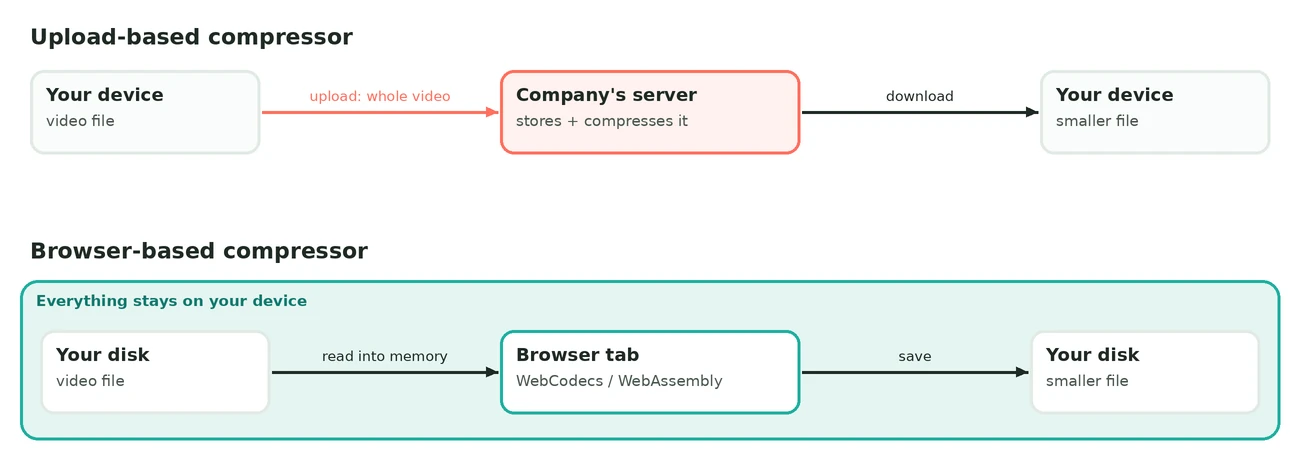
Most compression tools have worked the same way for years: your browser sends the video to a server, software on that server compresses it, and the result comes back. The browser only delivers the file. The compression itself, and the moment your file is exposed, happens somewhere you can't see.
A browser-based tool loads the compression engine into your browser tab and runs it on your own hardware. Modern browsers give web pages two ways to do this. WebCodecs gives a page direct access to the video encoder and decoder that are already built into the browser and often hardware-accelerated. WebAssembly lets a page run compiled programs, such as FFmpeg, at close to native speed. My video compressor uses WebCodecs for common formats like MP4 and MOV, and falls back to FFmpeg in WebAssembly for older formats like AVI. Either way, the video is read from your disk into the tab's memory, processed there, and written out as a new file on your device. No step in that chain needs the video to travel anywhere.
That's a different design, not new wording for the same thing. A server-based tool moves your file across the internet twice, up and back down, before you get a result. A local tool never moves it, because the machine doing the work is yours.
How to check it yourself
You don't need to trust a privacy policy or an FAQ. Every modern browser has the tools to check this in about thirty seconds.
1.Open developer tools
Right-click the page and choose "Inspect," or press F12 (Cmd+Option+I on a Mac). Open the "Network" tab.
2.Compress a video as usual
Drop in a file and run the compression while you watch the Network tab.
3.Look for a large upload
A real client-side tool shows no big outgoing request the size of your file, only the page's own small files loading at the start. A server-based tool shows a large upload the moment you start, roughly the size of your video.
4.Try it in airplane mode
Load the tool once while online, then switch on airplane mode or turn off Wi-Fi and compress a video. If it still works with no connection at all, no server could have been involved, because you can't upload to a place you can't reach.
The airplane mode test is the most convincing one, since it doesn't depend on reading network traffic correctly. Either the tool works offline or it doesn't, and a tool that really processes everything locally has no reason to fail offline once the page has loaded.
Why it matters beyond feeling safer
Privacy is the obvious reason, but there are concrete ones too. An uploaded video exists, however briefly, on infrastructure you don't control. Even a well-run service can have a breach, a misconfigured storage bucket or a legal request you'll never hear about. A file that was never uploaded can't be caught up in any of that.
Speed is easy to overlook. With an upload-based tool, the total time includes the upload, the server's queue, the compression and the download, and both your connection and theirs matter at every step. Local processing skips three of those four. The only variable is how fast your own device runs the encoder, and most modern phones and laptops compress a several-minute clip in well under a minute on the fast path.
Then there's cost. Compressing video on a server takes real computing power, and the company pays for it on every file. That's why server-based tools lean toward size limits, watermarks and subscriptions. A tool that runs on your device isn't paying for your processing, which is how a local tool can skip size caps and usage limits without it being a trick to upsell you later.
What local processing doesn't cover
"Nothing leaves your device" is easy to overstate, so I want to be precise about it. It means the video file itself is never sent anywhere. It doesn't mean the page makes no network requests at all. A site can compress locally and still load ads or analytics that have nothing to do with your file; SquishyFile does both, as my privacy policy explains. The Network tab test still works: you're looking for the absence of a large upload the size of your video, not for zero traffic.
It also doesn't cover what happens after you download the compressed file. Emailing it, sending it on WhatsApp or uploading it to the cloud is a separate step with its own considerations, which I cover in my guide to sending video by email and WhatsApp. Local compression only protects the compression step.
Frequently asked questions
Does SquishyFile process videos locally?
Yes. Every tool on the site runs in your browser: the compressor, the converters, the filters, the transcription tools and the upscaler. Some use WebCodecs or WebAssembly on your CPU, and the AI tools use WebGPU on your graphics card. You can confirm it with the Network tab or airplane mode test above.
How can the tool work without an internet connection?
The page and its compression engine have to load once, like any website. After that, the compression itself needs no connection, which is exactly what the airplane mode test shows.
Is local processing slower than a server?
Usually it's faster overall, once you count the upload and download a server tool needs. A modern phone or laptop handles most everyday compression quickly, and skipping the network round trip tends to win.
Can a website lie about being client-side?
It can claim to be without working that way, which is why checking the Network tab beats reading the claim. A large upload during compression means the claim is false.
Does this mean there's no privacy risk at all?
It removes the risk of your video being sent to or stored on a server. What you do with the file after downloading it is a separate question.
Why do some free online compressors limit file size?
Usually because they process on a server, where every file costs them computing power and bandwidth. A tool that works locally doesn't carry that cost and doesn't need the limit.