

How Much Video Can 128GB Hold?
The short answer
A 128GB card or phone holds anywhere from 21 minutes to more than 40 hours of video. The resolution matters less than people think. What decides it is the bitrate, the number of megabits the camera writes for every second of footage.
Here is what 128GB holds for the formats people ask me about most:
- iPhone 1080p at 30fps: about 35 and a half hours
- iPhone 4K at 30fps: about 12 and a half hours
- iPhone 4K at 60fps: about 5 hours 20 minutes
- Action camera 4K at 100 Mbps: about 2 hours 50 minutes
- iPhone ProRes 4K: about 21 minutes
Those are full-capacity figures. Your real number comes out a bit lower, and I explain why further down.
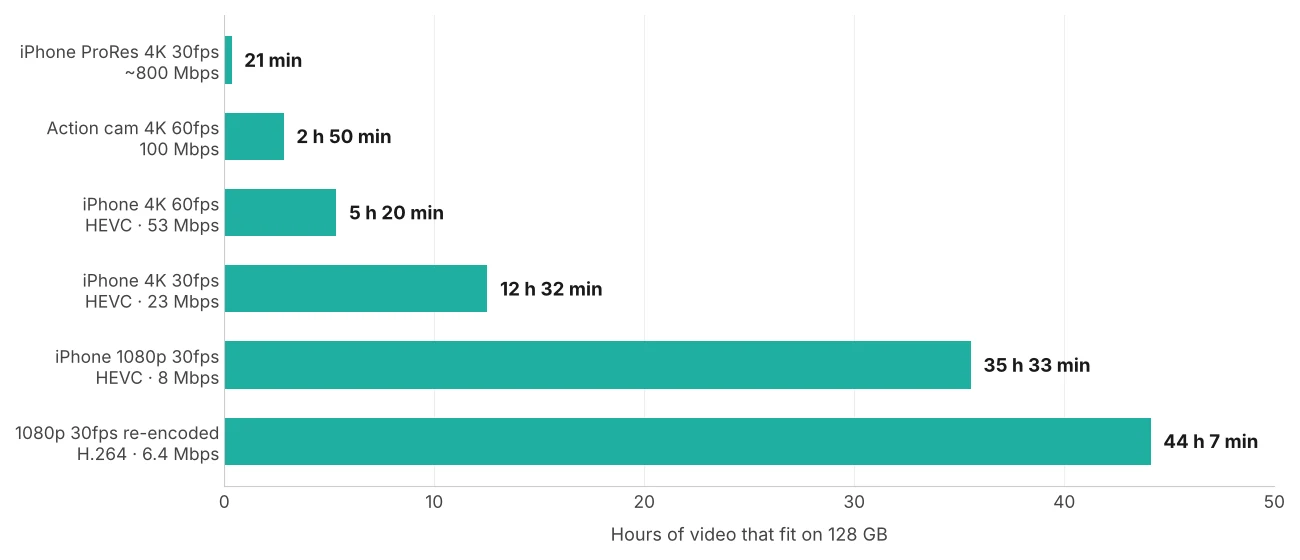
Why bitrate decides everything
A video file is its bitrate multiplied by its running time. Nothing else goes into the size in any meaningful amount. So if you know the bitrate, you can work out how much fits in any amount of storage:
hours ≈ storage in GB × 2.22 ÷ bitrate in Mbps
The 2.22 comes from turning gigabytes into megabits (× 8,000) and seconds into hours (÷ 3,600). Try it on an action camera recording at 100 Mbps: 128 × 2.22 ÷ 100 gives 2.84 hours, which is the 2 hours 50 minutes in the list above.
Resolution only matters because cameras raise the bitrate when they record more pixels. Two cameras can both say "4K" and fill a card at very different speeds. An iPhone records 4K at 30fps at around 23 Mbps. A GoPro-style action camera on its high bitrate setting writes 100 Mbps for the same resolution, so the card fills four times faster.
Where my numbers come from
The iPhone figures come from the per-minute sizes Apple lists for each video format: 60MB a minute for 1080p at 30fps, 90MB for 1080p at 60fps, 135MB for 4K at 24fps, 170MB for 4K at 30fps and 400MB for 4K at 60fps. These are for the default High Efficiency (HEVC) format. They're averages, so a busy scene runs a little higher and a static one a little lower.
The camera tables use exact bitrates, so the math is the formula above with nothing hidden.
For storage I use the capacity printed on the card or phone, in the same units the manufacturer uses: 128GB means 128 billion bytes. I didn't take anything off for the operating system, the file system or the photos already on the device. That part depends on you, and the section on why your card fills up faster shows how to adjust.
How much iPhone video fits on 64GB, 128GB, 256GB and more
These are hours of recording in the default High Efficiency format, using all of the stated capacity:
| Format | Per minute | 64GB | 128GB | 256GB | 512GB | 1TB |
|---|---|---|---|---|---|---|
| 1080p 30fps | 60 MB | 17 h 46 min | 35 h 33 min | 71 h | 142 h | 277 h |
| 1080p 60fps | 90 MB | 11 h 51 min | 23 h 42 min | 47 h 24 min | 94 h | 185 h |
| 4K 24fps | 135 MB | 7 h 54 min | 15 h 48 min | 31 h 36 min | 63 h | 123 h |
| 4K 30fps | 170 MB | 6 h 16 min | 12 h 32 min | 25 h 5 min | 50 h | 98 h |
| 4K 60fps | 400 MB | 2 h 40 min | 5 h 20 min | 10 h 40 min | 21 h 20 min | 41 h 40 min |
A 128GB iPhone never has 128GB free, so read the table by the free space your phone actually has. Open Settings, then General, then iPhone Storage, and check the number at the top. If 50GB is free, you have room for about 4 hours 54 minutes of 4K at 30fps.
If you switched the camera to Most Compatible, your videos are H.264 instead of HEVC and take more room. My compressor works on the rule that HEVC holds the same picture in roughly 30% fewer bits than H.264, so expect noticeably shorter times than the table shows.
ProRes is a different story
iPhone Pro models can record ProRes, a format built for editing rather than storage. Apple puts a minute of 10-bit HDR ProRes at about 1.7GB in 1080p and about 6GB in 4K. At 6GB a minute, an empty 128GB phone fills in about 21 minutes. That's why Apple limits 128GB Pro models to ProRes at 1080p and 30fps when recording to the phone itself. 4K ProRes needs a 256GB model or more, or an external drive on iPhone 15 Pro and later. A 256GB phone holds about 42 minutes of it, and a 1TB phone about 2 hours 46 minutes.
Cameras, action cams and dashcams: go by the bitrate
Outside the iPhone, the brand and model tell you very little. The bitrate tells you everything. Find it in the camera's recording menu or its spec sheet, then read across:
| Bitrate | Per minute | Per hour | 32GB | 64GB | 128GB | 256GB | 512GB |
|---|---|---|---|---|---|---|---|
| 10 Mbps | 75 MB | 4.5 GB | 7 h 6 min | 14 h 13 min | 28 h 26 min | 56 h 53 min | 113 h |
| 20 Mbps | 150 MB | 9 GB | 3 h 33 min | 7 h 6 min | 14 h 13 min | 28 h 26 min | 56 h 53 min |
| 50 Mbps | 375 MB | 22.5 GB | 1 h 25 min | 2 h 50 min | 5 h 41 min | 11 h 22 min | 22 h 45 min |
| 100 Mbps | 750 MB | 45 GB | 42 min | 1 h 25 min | 2 h 50 min | 5 h 41 min | 11 h 22 min |
| 150 Mbps | 1.1 GB | 67.5 GB | 28 min | 56 min | 1 h 53 min | 3 h 47 min | 7 h 35 min |
| 200 Mbps | 1.5 GB | 90 GB | 21 min | 42 min | 1 h 25 min | 2 h 50 min | 5 h 41 min |
Doubling the bitrate halves the time, so 100 Mbps on a 256GB card lasts exactly as long as 50 Mbps on a 128GB card. Once you see that pattern, you can fill in any bitrate the table doesn't list.
If you can't find the bitrate in the menu, read it from a clip you already shot. On Windows, right-click the file, open Properties, then the Details tab, and look for Total bitrate. On a Mac, open the clip in QuickTime Player, choose Window, then Show Movie Inspector, and look at Data Rate.
For a dashcam that loops, the table gives you how much footage the card keeps before it starts overwriting the oldest clips. For a camera on a trip, it tells you how many cards to pack.
Why 32GB cards split your videos into pieces
Cards of 32GB and smaller usually come formatted as FAT32, and FAT32 can't hold a single file larger than 4GB. A camera recording at 100 Mbps reaches 4GB in about five and a half minutes, so it closes the file there and starts a new one. Bigger cards use exFAT, which doesn't have that limit, but many cameras split long recordings at around 4GB anyway, GoPro included. Nothing gets lost. The pieces play back to back, and any editor joins them without a gap.
Why your card fills up faster than the table says
Three things eat into the numbers above.
The units. Card makers count 1GB as 1,000,000,000 bytes. Windows counts it as 1,073,741,824 bytes, so a 128GB card shows up as about 119GB. No space has gone missing. It's the same number of bytes, shown with a bigger unit. Macs count the way card makers do, so a Mac shows close to 128GB for the same card.
Space that's already taken. Formatting reserves a small amount for the file system. On a phone, the operating system, your apps and your photos take far more. Only the free space counts.
The scene. Cameras don't write a fixed bitrate. A shot of leaves moving in the wind or water at night gives the encoder more to describe, and the bitrate climbs. A tripod shot of a talking head drops below average. Over an hour these swings mostly even out, but a day of busy action footage can run well above the averages.
For a safe plan, take 10% off any figure in the tables.
How to fit more video in the same space
The only way to fit more hours is to lower the bitrate. You can do that while recording or after.
While recording, drop the frame rate before the resolution. On an iPhone, 4K at 30fps takes less than half the space of 4K at 60fps, and most footage doesn't need 60. On an action camera, the standard bitrate setting instead of the high one buys you a lot more recording time.
After recording, re-encode the clips you want to keep long term. How much this saves depends on where the footage came from:
| Re-encoded to (H.264, Good quality) | Per minute | Per hour | On 128GB |
|---|---|---|---|
| 720p 30fps | 22 MB | 1.3 GB | 96 h 51 min |
| 1080p 30fps | 48 MB | 2.9 GB | 44 h 7 min |
| 1080p 60fps | 72 MB | 4.3 GB | 29 h 37 min |
| 4K 30fps | 190 MB | 11.4 GB | 11 h 12 min |
These come from the same model my video file size calculator uses at its Good setting, with 128 kbps audio. The calculator shows slightly smaller numbers, 46MB a minute for 1080p instead of 48, because it counts megabytes the way Windows does.
Compare that table with the earlier ones and you'll see where re-encoding pays off. Action camera footage at 100 Mbps shrinks from 750MB a minute to 48MB at 1080p, about 15 times smaller. A screen recording or game capture at a high bitrate shrinks by a similar amount. iPhone footage barely moves. It's already HEVC, so a 1080p clip goes from 60MB a minute to 48MB, and 4K at 30fps gets slightly bigger in H.264. I went through this with real files in how much you can compress a 1GB video, and the short version is that iPhone files leave the least room.
If you have big recordings from a camera, my video compressor re-encodes them in your browser, so a 20GB folder of GoPro clips doesn't have to go through an upload first. For the quality side of choosing a bitrate, the video bitrate chart shows what each resolution needs to stay clean.
Work out your own number
The tables cover the common cases. For anything else, open the file size calculator and use Max length. Enter your free space in GB, then either pick a resolution and frame rate or type the exact bitrate from your camera. It tells you how long you can record.
Enter the free space the way Windows shows it, since the calculator counts in the same units. If you're reading it off a Mac or off the card's label, take about 7% off first. A 128GB card becomes 119.