

SquishyFile vs FreeConvert: Which Video Compressor Should You Use?
FreeConvert is one of the biggest names in online file conversion, and its video compressor is what a lot of people reach for first. SquishyFile is the video compressor I built. Both are free, both run from a web page, and both turn a big video into a smaller MP4.
Under the hood they work in opposite ways, and that changes which one you should use. I made SquishyFile, so I'm obviously not neutral. I've kept every FreeConvert fact below to what FreeConvert publishes on its own compressor, pricing and privacy pages as of October 2026, and every SquishyFile fact to what my code actually does. Where FreeConvert is better, I say so.
SquishyFile vs FreeConvert at a glance
| SquishyFile | FreeConvert | |
|---|---|---|
| Where compression happens | In your browser, on your device | On FreeConvert's servers |
| Uploads your video | No | Yes |
| Free file size limit | None set, limited by your device | 1GB |
| Free daily limit | None | 20 conversion minutes, 5 per file |
| Exact size target | Type MB, or tap a preset | Percentage of the original |
| Output codec | H.264 (MP4) | H.264 or H.265 |
| Subtitles | No | Burn in or attach .srt/.ass |
| Manual resolution change | No (auto, or 720p on Max squish) | Yes |
| Account needed | No | No for basic use |
| Paid plans | None | From $12.99/month |
How they work: upload vs in-browser
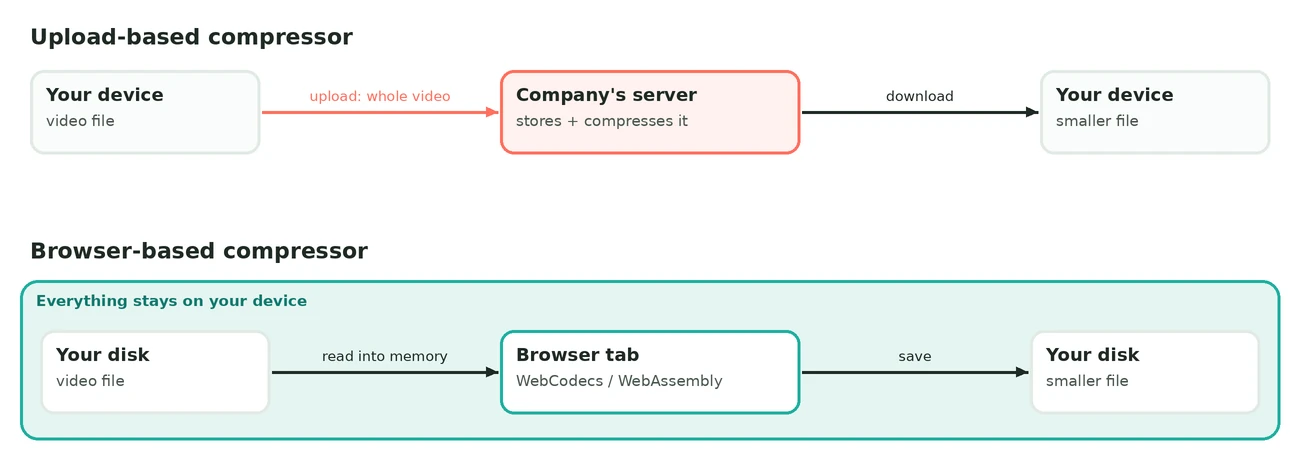
FreeConvert is upload-based. Your browser sends the whole video to FreeConvert's servers, their machines re-encode it, and you download the result.
SquishyFile does the encoding inside the browser tab. The page loads an encoder, and your device compresses the video using the browser's built-in WebCodecs API. For older formats WebCodecs can't read, like AVI, WMV or FLV, it switches to a WebAssembly build of FFmpeg. The file stays on your device the whole time.
Speed
With FreeConvert, the slow part is usually your internet connection. A 1GB video is about 8,000 megabits, so on a connection with 10 Mbps of upload bandwidth you spend roughly 13 minutes uploading before compression starts, and then you download the result. Home plans often upload far slower than they download, so the number that matters is your upload speed.
With SquishyFile there's no upload at all, so the slow part is your hardware. On a recent laptop or phone, the browser uses the device's hardware video encoder and a typical clip finishes quickly. On an old, low-power machine, a long 4K file takes a while, and FreeConvert's servers don't care how old your computer is.
Winner: depends on your setup. Slow upload, decent device: SquishyFile. Fast upload, weak device: FreeConvert.
Hitting an exact file size
Most people compress a video because it's too big for somewhere: WhatsApp, Gmail, Discord. That means they have a number in MB.
FreeConvert asks for the target as a percentage of the original file, from 0 to 10,000 percent. To get a 180MB clip under Gmail's 25MB limit, you work it out yourself: 25 divided by 180 is about 0.139, so you type roughly 14 percent. Encoders land near a size target rather than exactly on it, so with a strict limit it's safer to aim a couple of points lower.
In SquishyFile you switch to Exact size and type 25, or tap a preset: WhatsApp 16MB, Discord Free 20MB, Messenger/Gmail 25MB, Discord Nitro Basic 50MB, LinkedIn 200MB, or Discord Nitro and TikTok at 500MB. It aims slightly under the target on the first pass, checks the real output size, and runs another pass if the file still came out too big. If the target is bigger than your file, it tells you there's nothing to compress instead of re-encoding for no reason.
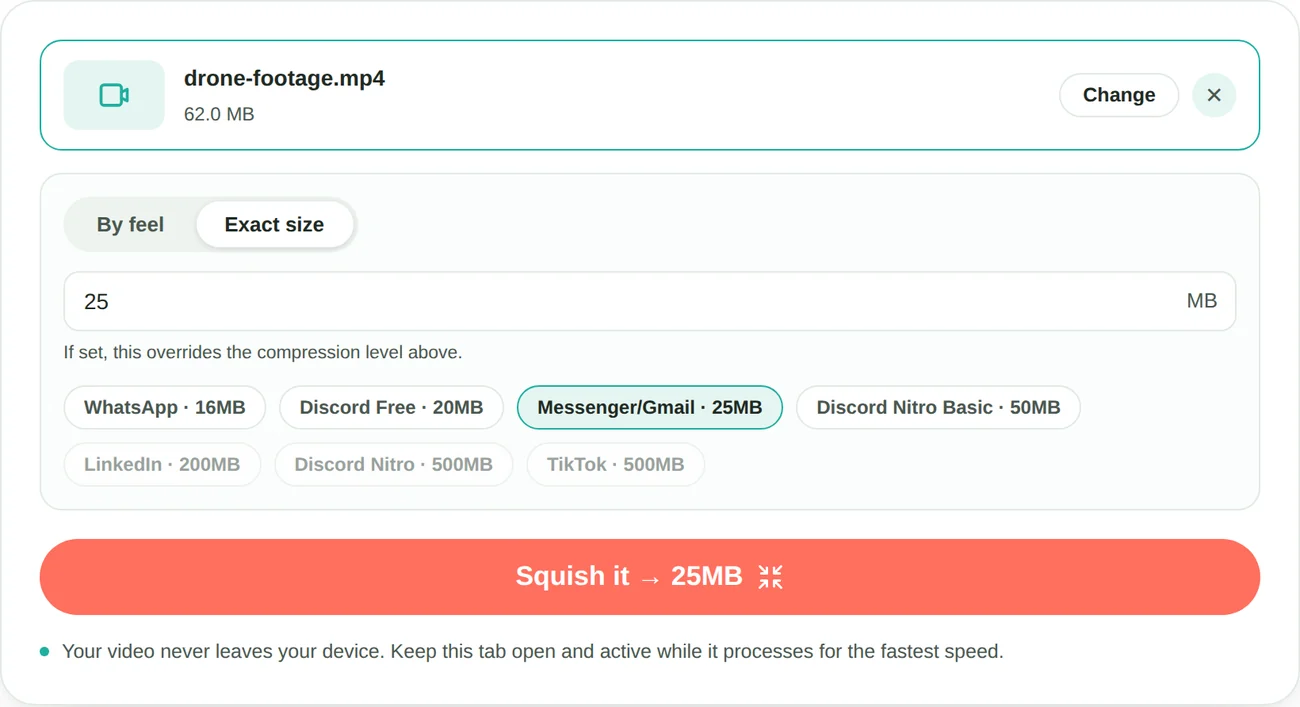
Winner: SquishyFile. Typing the limit beats doing the percentage maths, and the second pass catches overshoots.
Codecs and output quality
FreeConvert lets you pick H.264 or H.265 (HEVC), and its page says H.265 makes files 20 to 75 percent smaller than H.264. H.265 really is the more efficient codec. The trade-off is playback: Apple devices and most recent Android phones play it natively, but many Windows PCs need Microsoft's paid HEVC extension, and browser support is uneven.
SquishyFile always outputs H.264 in an MP4. I made that choice on purpose, because people usually compress a video to send it to someone, and H.264 opens on practically everything. It does mean SquishyFile can't match FreeConvert's smallest possible H.265 file.
On quality, SquishyFile has three levels. Light keeps the picture sharp, Balanced is the middle ground for sharing, and Max squish caps the video at 720p for the smallest file. In exact-size mode it lowers the resolution by itself when the size you asked for is too small to keep the original resolution looking clean, and it tells you when it does. FreeConvert has a "target a video quality" mode and a manual resize option, so you make those calls yourself.
Winner: FreeConvert if you want H.265 and full manual control. SquishyFile if you want a file that plays anywhere without thinking about codecs.
Formats and extra features
FreeConvert's compressor accepts more than 30 input formats, including MP4, MOV, MKV, AVI, WMV, FLV, VOB, MXF and WTV. It can also burn subtitles into the video or attach them as a separate track, and it has an option to make the output play on older devices.
SquishyFile reads the common modern containers (MP4, MOV, MKV, WebM) through WebCodecs, and hands about 20 older ones to FFmpeg, including AVI, WMV, FLV, MPG, VOB, RMVB, MTS and M2TS. It doesn't do subtitles, and it doesn't let you set a resolution by hand.
Winner: FreeConvert. Format coverage is close, but subtitles and manual resizing are real extras SquishyFile doesn't have.
Free plan limits
| Limit | SquishyFile | FreeConvert free |
|---|---|---|
| Max file size | None set | 1GB |
| Daily allowance | None | 20 conversion minutes |
| Per file | None | 5 conversion minutes |
FreeConvert's free limits are fine for phone clips and short recordings. They start to bite with long or high-resolution footage, since a few minutes of 4K from a phone or action camera easily passes 1GB. Going past that means a paid plan: Basic at $12.99 a month raises the cap to 1.5GB, and Pro at $29.99 a month raises it to 5GB.
SquishyFile has no allowance to run out of, because your device does the work and I'm not paying for server time per file. The real ceiling is your hardware. A very long 4K file on a phone with little memory can fail, and that's the one case where a server has the advantage.
Winner: SquishyFile for big files and heavy use without paying.
Privacy
FreeConvert's privacy policy says uploaded files are deleted automatically after 8 hours, that you can delete them earlier yourself, and that staff won't view your files without written consent unless the law requires it. That's a sensible policy.
It's still a policy about a copy of your video sitting on someone else's server. With SquishyFile there's no copy to delete, because the file never gets sent anywhere. If you want to check that for any tool, mine included, I show a 30-second test in is it safe to compress a video online.
Winner: SquishyFile. For client footage, private recordings or anything with personal information in it, local beats a deletion promise.
The scorecard
| Round | Winner |
|---|---|
| Speed | Depends on your connection and device |
| Hitting an exact size | SquishyFile |
| Codecs and control | FreeConvert |
| Formats and extras | FreeConvert |
| Free limits | SquishyFile |
| Privacy | SquishyFile |
Which one should you use?
Use FreeConvert if your computer is old or slow, if you need H.265 for the smallest file and know it'll play where it's going, or if you want subtitles burned in while you compress.
Use SquishyFile if you need a video under a specific size for WhatsApp, Gmail or Discord, if your upload speed is slow, if the file is over 1GB, or if it's footage you'd rather not hand to a server.
Whichever you pick, compress from the original file rather than an already-compressed copy, since every re-encode stacks more loss on top of the last one. I measured how fast that adds up in how many times you can compress a video. And if a long video has to fit a tiny limit, expect it to look soft in any tool. My video bitrate chart shows what each resolution needs to look decent.
If your video is too big to send right now, try SquishyFile's video compressor. Type the size you need and see what comes out.