

SquishyFile vs 8mb.video: Which Is Better for an 8MB Video?
If you've ever tried to post a clip on Discord, someone has probably sent you a link to 8mb.video. It's been the go-to tool for that one job for years: drop a video in, pick 8MB, get a file Discord accepts. SquishyFile's 8MB video compressor does the same job a different way.
I built SquishyFile, so I'm biased, and I'll keep that in mind. I took every 8mb.video fact here from its own homepage and billing page as of October 2026, and every SquishyFile fact from what my code does. 8mb.video wins some rounds below, and I say so where it does.
SquishyFile vs 8mb.video at a glance
| SquishyFile | 8mb.video | |
|---|---|---|
| Where compression happens | In your browser, on your device | On 8mb.video's server |
| Uploads your video | No | Yes |
| Size presets | 8MB and 10MB pages, plus 16 to 500MB presets | 8, 10, 20, 25, 50, 100MB |
| Custom size | Any number you type | Up to 200MB |
| Quality control | Light, Balanced, Max squish | One "Extra quality (slower)" checkbox |
| Trim | No | Yes, start and end times |
| Remove sound | No | Yes |
| Output | H.264 MP4 | Not stated on the page |
| Account needed | No | No |
| Paid option | None | $5/month supporter subscription |
| File kept on a server | Never sent to one | Up to 20 minutes |
How they work
8mb.video is upload-based. You drop the file in, your browser sends it to 8mb.video's server, the server compresses it, and you download the smaller version. Its homepage shows a "Server Status" section, and the owner asks visitors to chip in because running those servers costs money.
SquishyFile compresses inside the browser tab. The page loads an encoder and your device does the work through the browser's WebCodecs API, using the hardware video encoder that most recent phones and laptops have. Older formats like AVI, WMV and FLV go through a WebAssembly build of FFmpeg instead. The video stays on your device for the whole process.
Getting under 8MB
This is the job both tools exist for, so it matters most.
On 8mb.video you pick 8MB, 10MB, 20MB, 25MB, 50MB or 100MB, or type your own size up to 200MB. The interface keeps it that simple, and for a short clip it works well.
On SquishyFile the 8MB page opens with 8MB already set, so you drop a file in and press compress. On the main compressor you switch to Exact size and type any number, or tap a preset for WhatsApp 16MB, Discord Free 20MB, Gmail 25MB, Discord Nitro Basic 50MB, or larger ones up to 500MB. SquishyFile aims slightly under the target, measures the file it actually produced, and runs another pass if it still came out too big. That second check is what keeps a file from landing at 8.1MB and getting rejected.
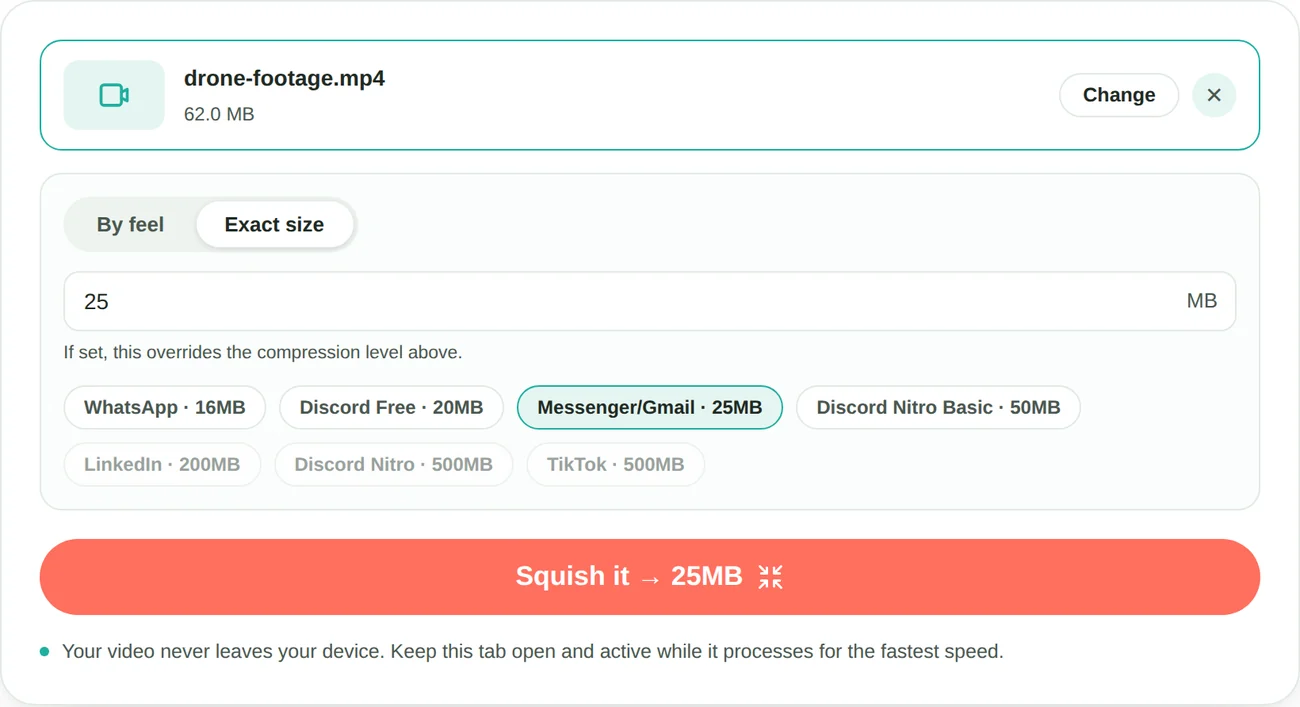
One thing worth knowing: Discord's free upload limit is 20MB now, not 8MB. If Discord is where the clip is going, the Discord video compressor uses Discord's current tiers so you get the most quality the limit allows.
Winner: SquishyFile, for the any-size input and the size check after encoding.
Quality
8mb.video has a single quality switch, a checkbox labelled "Extra quality (slower)". Its homepage doesn't say what that changes or which codec the output uses.
SquishyFile has three levels. Light keeps the picture sharp, Balanced fits most sharing, and Max squish caps the video at 720p for the smallest file. When an 8MB target is too small for the clip's original resolution, SquishyFile lowers the resolution itself and shows a note, because a sharp 720p video looks better than a blocky 1080p one at the same size. The output is always H.264 MP4, which plays in Discord's preview and on every phone.
The bigger factor for both tools is length. 8MB is about 64 megabits, so a 60-second clip gets roughly 1 Mbps for everything. That's enough for decent 720p and not much more. My video bitrate chart shows what each resolution needs.
Winner: SquishyFile, because you can see and choose what happens to the picture.
Trimming and sound
Here 8mb.video has features SquishyFile doesn't. You can set a start and end time, skip the first or last few seconds, and strip the audio completely. All three help with a small target. Cutting a 40-second clip to the 15 seconds that matter gives each second almost three times the bitrate, and removing sound frees up the bits audio would have used.
SquishyFile doesn't trim or mute. You'd need to cut the clip in your phone's editor first, then compress it.
8mb.video also has a field for pasting a URL, plus options to play a sound or start the download automatically when it's done.
Winner: 8mb.video, clearly. Trimming before compressing is one of the best ways to make a small file look good.
Speed
With 8mb.video, the upload is part of the wait. For a short phone clip that's a few seconds. For a 500MB screen recording on a home connection that uploads at 10 Mbps, it's close to 7 minutes before compression starts.
With SquishyFile there's no transfer, so your device sets the speed. A recent laptop or phone gets through a typical clip quickly. A slow, old computer will struggle more with long 4K files than a server would.
Winner: depends on your setup. Big file or slow upload favours SquishyFile, an old device favours 8mb.video.
Privacy
8mb.video says it deletes every video from its server after 20 minutes, or as soon as you've downloaded it, and you can set how many downloads to allow, from 1 to 10. For a meme clip headed to a Discord server, that's plenty.
For anything private, like a family video, a work screen recording or a clip with someone's face in it, SquishyFile never puts a copy on a server, so nothing is waiting to be deleted. If you want to verify that with any tool, mine included, I show how in is it safe to compress a video online.
Winner: SquishyFile.
The scorecard
| Round | Winner |
|---|---|
| Getting under 8MB | SquishyFile |
| Quality | SquishyFile |
| Trimming and sound | 8mb.video |
| Speed | Depends on your connection and device |
| Privacy | SquishyFile |
Which one should you use?
Use 8mb.video if you need to cut the clip down or drop the sound at the same time, or if your computer is old and the clip is short. It's simple and it does exactly what its name says.
Use SquishyFile if the clip is already trimmed, if you need a size that isn't on a preset list, if the file is large or your upload is slow, or if it's a video you'd rather not send to a server.
For either tool, start from the original recording rather than a copy that's already been compressed, since each re-encode adds loss. I tested how fast that adds up in how many times you can compress a video.
Got a clip that's too big right now? Try SquishyFile's 8MB video compressor, or the 10MB one if that's your limit.